Change Image Background Online Free – Remove & Replace Background | ImgPro
 Rakhal das
Change Image Background Online Free – Remove and Replace Photo Background
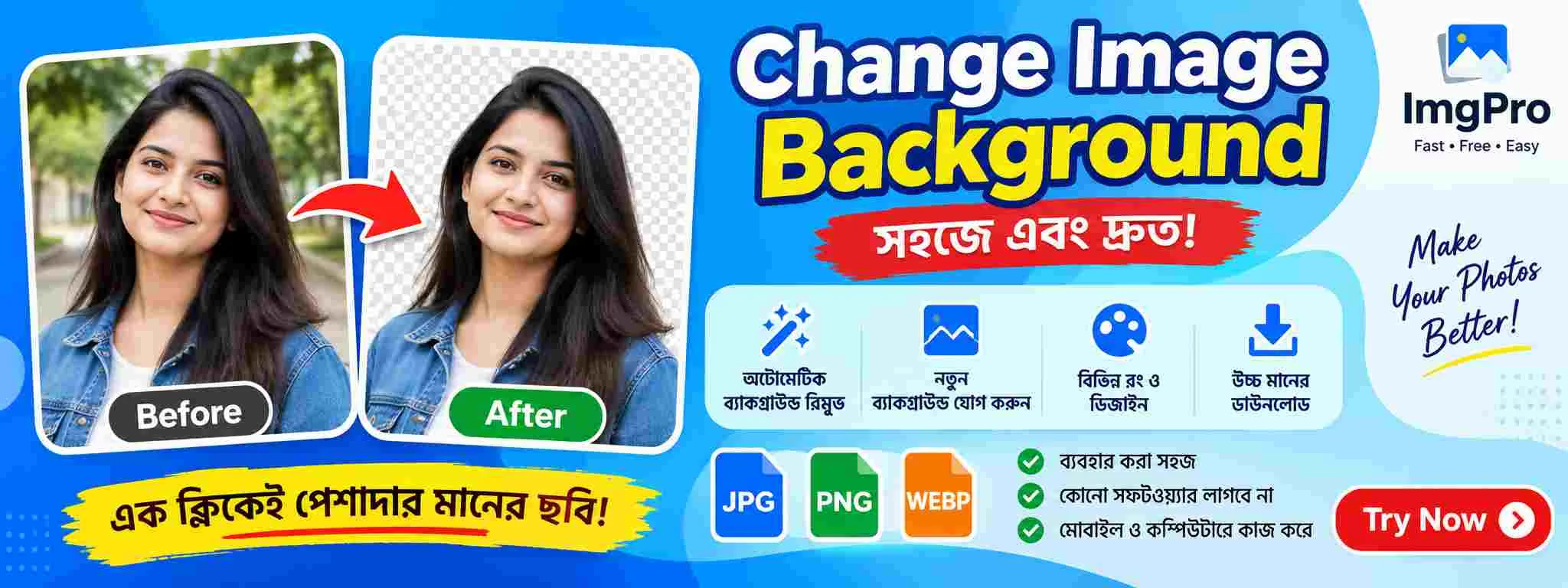
Change Image Background easily with an online background changer that helps you remove an unwanted background and replace it with a new one. Whether you want to create a professional profile photo, remove a distracting background, prepare a product image, create a transparent image, or give your photograph a completely new look, an online background editing tool can make the process much easier.
In the past, changing the background of a photograph usually required professional photo-editing software and some knowledge of complicated editing techniques. Users had to manually select objects, use layers, erase unwanted areas, and carefully adjust edges. Today, online image tools make many of these tasks much simpler.
With a modern Change Image Background tool, you can work with your image directly from a web browser without needing advanced design skills. You can upload a photograph, remove the existing background, select or add a new background, preview the result, and save the edited image.
This type of tool can be useful for students, job applicants, photographers, online sellers, bloggers, social-media creators, website owners, designers, and anyone who wants to improve the appearance of a photograph.
What Does Change Image Background Mean?
Change Image Background means removing the existing background of an image and replacing it with another background.
For example, imagine you have a portrait photograph taken outdoors. There may be trees, buildings, vehicles, people, or other objects behind you. If you want a clean professional photograph, you can remove the original background and replace it with a plain white, blue, gray, or another suitable background.
Similarly, an e-commerce seller may photograph a product at home. The room or table behind the product may look distracting. By removing the original background, the seller can create a clean product image with a plain or transparent background.
Background replacement can be used for both practical and creative purposes.
Some common examples include:
- Replacing a busy background
- Creating a white-background photograph
- Making a transparent PNG
- Creating professional profile photos
- Preparing product photographs
- Designing social-media graphics
- Creating thumbnails
- Making promotional images
- Removing unwanted objects from the background
- Creating creative photo compositions
Why Change the Background of an Image?
There are many reasons why someone may want to change the background of a photograph.
Sometimes the original background is distracting. In other situations, the background simply does not match the purpose of the image.
Here are some of the most common reasons.
1. Create a Professional Photograph
A clean background can make a portrait look more professional.
For example, if you take a photograph in a room with furniture, clothes, household objects, or other distractions, replacing the background with a simple color can create a cleaner appearance.
This can be useful for:
- Professional profiles
- Resume photographs
- Business profiles
- ID-style photographs
- Website profiles
- Social-media accounts
2. Remove Distracting Backgrounds
Sometimes the main subject of a photograph is good, but the background contains too many distracting elements.
A crowded street, messy room, random people, signs, vehicles, or other objects can draw attention away from the main subject.
Changing the background can help make the subject stand out.
3. Create Product Images
Online sellers often need clean product photographs.
Suppose you sell clothing, electronics, accessories, handmade products, or other items. A photograph taken in a normal room may contain unnecessary background details.
Removing the background can create a cleaner product image.
A plain background can also make different product photographs look more consistent.
4. Create Transparent Images
Sometimes you don't want to replace the background with another photograph or color.
Instead, you may want to remove the background completely.
This creates a transparent background, which can be particularly useful for:
- Logos
- Product images
- Stickers
- Website graphics
- Presentations
- Digital designs
- Marketing materials
A transparent image can then be placed over another background using an image editor or design application.
How Does an Online Background Changer Work?
Modern background-removal tools generally analyze an image to identify the main subject and separate it from the surrounding background.
The main subject could be:
- A person
- A product
- An animal
- An object
- A vehicle
- Another clearly visible foreground element
Once the subject has been identified, the background can be removed or replaced.
The exact technology used by a particular tool can vary. Some services use automated image-processing or AI-based segmentation, while others provide manual editing controls.
The goal is the same: separate the foreground subject from the background so that the background can be changed.
How to Change Image Background Online
Changing an image background can be completed in a few simple steps.
Step 1: Choose Your Image
Start by selecting the photograph you want to edit.
Choose an image where the main subject is clearly visible.
For example, if you are editing a portrait, choose a photograph where the person is not heavily obscured by other objects.
A clear source image usually makes background removal easier.
Step 2: Upload the Image
Open the Change Image Background tool and upload your photograph.
Depending on the tool, supported formats may include common image types such as JPG, PNG, and WEBP.
Before uploading, check the file requirements if the service provides specific limits.
Step 3: Remove the Existing Background
The background-removal process separates the main subject from the existing background.
The result may show the subject against a transparent background.
At this stage, carefully inspect the edges.
Pay particular attention to:
- Hair
- Hands
- Fingers
- Clothing
- Small objects
- Product edges
- Curved surfaces
- Fine details
These areas can sometimes be more difficult to separate from a complicated background.
Step 4: Select a New Background
Once the original background has been removed, you can choose a replacement.
Depending on your purpose, you could use:
- White
- Black
- Gray
- Blue
- Green
- A gradient
- Another photograph
- A custom design
- A transparent background
For professional images, simple backgrounds are often easier to use.
For creative projects, you can select a more visually interesting background.
Step 5: Check the Result
Always preview the image before saving it.
Look around the edges of the subject.
A good background replacement should look natural and clean.
Check whether:
- Any part of the original background remains
- Part of the subject has been accidentally removed
- Hair edges look natural
- The new background fits the subject
- The subject has the correct position
- The image has unwanted artifacts
If something does not look right, make adjustments before downloading.
Step 6: Save the Final Image
Once you are satisfied with the result, save or download the edited image.
If you need transparency, make sure you select an image format that supports transparent backgrounds, such as PNG, where applicable.
Change Image Background for Passport-Style Photos
One common reason people search for Change Image Background tools is to prepare photographs for applications.
Some applications may request photographs with a specific background color.
For example, an application may require:
- White background
- Light-colored background
- Specific dimensions
- Specific file size
- Specific image format
If the original photograph has an unsuitable background, a background changer can help prepare the image.
However, you should always follow the official requirements of the application. Changing a background does not guarantee that an image will satisfy every requirement.
Change Image Background to White
A white background is one of the most popular choices for image editing.
It creates a simple and clean appearance and works well for many types of images.
White backgrounds are commonly used for:
- Product photos
- Profile photographs
- Catalog images
- Website images
- Online store listings
- Documents
- Marketing materials
For a professional-looking result, make sure the subject has good separation from the white background.
For example, a person wearing a white shirt against a pure white background may require careful edge treatment to remain clearly visible.
Change Image Background to Blue
Blue backgrounds can also be useful for certain applications and creative designs.
A blue background can provide stronger contrast against subjects wearing lighter clothing.
However, if the image is being submitted for an official application, don't assume blue is acceptable. Always check the specific requirements.
For creative designs, blue can be used for:
- Posters
- Social-media graphics
- Profile pictures
- YouTube thumbnails
- Promotional images
- Digital artwork
Change Image Background to Transparent
A transparent background is particularly useful when the image needs to be placed on another design.
For example, imagine you have a product photograph and want to place the product over a promotional banner.
If the original background has already been removed, the product can be positioned over the new design without its original surroundings.
Transparent backgrounds are commonly useful for:
- Logos
- Product photos
- Icons
- Stickers
- Graphics
- Website elements
- Marketing designs
PNG is commonly used when transparency needs to be preserved.
Change Background of a Portrait
Portrait photographs are one of the most common types of images that people want to edit.
A portrait may have been taken:
- At home
- In a park
- On a street
- At an event
- In an office
- In a classroom
- While traveling
The original background may not be appropriate for the final purpose.
Changing it can create a cleaner presentation.
For example:
Original: Person standing in a crowded room
Edited: Person against a simple professional background
The subject remains the same, while the surrounding environment changes.
Change Background of Product Photos
Product photography is another major use case.
Online stores benefit from consistent product presentation.
Suppose you have ten products photographed in different locations. Each photograph may have a different wall, table, lighting condition, or surrounding environment.
Removing the backgrounds can help create a more consistent appearance.
For example:
Original: Product on a bedroom table
Edited: Product on a clean neutral background
This can make product catalogs and online listings look more organized.
Change Image Background for Social Media
Social-media creators often need attractive and visually consistent images.
A background changer can be useful when preparing:
- Instagram posts
- Facebook posts
- YouTube thumbnails
- Profile pictures
- Promotional graphics
- Story images
- Short-video thumbnails
Instead of taking a new photograph every time you need a different background, you can edit an existing photograph.
Creative background replacement can also help establish a consistent visual style.
Change Image Background for YouTube Thumbnails
YouTube thumbnails often use strong visual compositions.
Creators may isolate themselves or another subject from the original background and place the subject over a custom graphic.
For example:
- Take a portrait photograph.
- Remove the original background.
- Place the subject over a designed background.
- Add text and other graphics.
- Export the final thumbnail.
The background-removal step is particularly useful when you want the person to appear prominently in the thumbnail.
Change Image Background for E-Commerce
E-commerce websites require high-quality product images because customers cannot physically inspect products before purchasing.
A clean image can make a product easier to understand.
Background replacement can help create:
- Consistent product catalogs
- Clean product listings
- Marketplace-ready images
- Promotional banners
- Product comparison graphics
However, sellers should ensure that the edited photograph accurately represents the product.
Avoid changing the product itself or using a background that gives customers a misleading impression.
Tips for Better Background Removal
The quality of background replacement depends partly on the original photograph.
Here are several tips that can help.
Use a Clear Photograph
Choose a sharp image where the subject is easy to distinguish.
Low-resolution or heavily blurred images may be more difficult to process accurately.
Avoid Extremely Busy Backgrounds
A simple background can make subject separation easier.
If possible, photograph the subject against a background with reasonable contrast.
Use Good Lighting
Good lighting helps distinguish the subject from its surroundings.
Avoid extremely dark photographs or photographs where the subject blends into the background.
Keep the Subject Clearly Visible
If objects overlap the subject, automated background removal may have difficulty identifying the correct boundaries.
Try to choose photographs where the subject is clearly visible.
Check Hair and Fine Details
Hair is one of the most challenging areas in many background-removal workflows.
After changing the background, zoom in and inspect the hair edges.
Look for:
- Missing strands
- Unwanted background fragments
- Rough edges
- Halo effects
The same applies to fur, transparent objects, and thin accessories.
How to Make a Background Replacement Look Natural
Simply removing the original background is not enough to make an image look realistic.
The replacement background should visually match the subject.
Consider these factors.
Lighting
If the person is illuminated from the left, but the replacement background suggests light coming from the right, the result may look unnatural.
Perspective
The subject and background should have a compatible perspective.
Color
The colors should complement each other.
Scale
A person should not appear unnaturally large or small compared with the new environment.
Shadows
Where appropriate, realistic shadows can help integrate the subject with the new background.
Common Background Replacement Mistakes
There are several mistakes that can reduce the quality of an edited image.
Mistake 1: Choosing a Completely Incompatible Background
A formal portrait placed into an unrelated environment may look unnatural.
Choose a background that fits the purpose of the image.
Mistake 2: Ignoring Edge Quality
A poorly removed background can leave visible halos around the subject.
Always inspect the edges.
Mistake 3: Using Low-Quality Images
Starting with a blurry or pixelated photograph can limit the quality of the final result.
Use the highest-quality source image reasonably available.
Mistake 4: Overediting
Background replacement should improve the image rather than make it unnecessarily complicated.
A simple, clean background is often more effective.
Change Image Background vs Background Removal
These terms are related but not identical.
Background removal means eliminating the existing background.
Background replacement means removing the existing background and putting another background in its place.
For example:
Background Removal
Person → Transparent Background
Background Replacement
Person → New White Background
A background-removal tool may therefore be one part of the complete background-changing workflow.
Change Image Background Without Photoshop
Adobe Photoshop and other professional editing applications provide advanced background-editing capabilities, but they can have a learning curve.
For a simple task such as removing a background and replacing it, an online tool may be more convenient.
An online Change Image Background tool can be useful when:
- You don't have professional editing software
- You are using a mobile device
- You need a quick edit
- You don't want to learn complex tools
- You only need basic background replacement
This makes online tools particularly useful for everyday users.
Can I Change a JPG Background?
Yes, JPG images can generally be used as source photographs in background-editing workflows.
JPG is widely used for photographs because it offers relatively small file sizes and broad compatibility.
If you remove the background and need transparency, however, remember that the output format matters. A format such as PNG is commonly used to preserve transparent areas.
Can I Change a PNG Background?
Yes.
PNG is particularly useful when transparency is involved.
For example, if you remove the background from a PNG and want to keep the transparent area, make sure your chosen output method preserves transparency.
Can I Change a WEBP Background?
WEBP is another modern image format commonly used for websites.
If your background-changing tool supports WEBP input, you can edit the image and choose an appropriate output format for your intended use.
Is an Online Background Changer Free?
Some online background-changing services offer free tools or free usage options.
The exact features, limits, supported formats, and processing rules can vary between services.
Before using any online tool, check the tool's current page for its latest limitations and available features.
Is It Safe to Change an Image Background Online?
Image privacy is important, especially when dealing with personal photographs or documents.
Before uploading sensitive images to an online service, review its privacy policy and understand how uploaded files are handled.
For ordinary photographs, an online image-editing tool can be convenient. For highly confidential documents, users should take additional care and use services they trust.
Benefits of Using an Online Change Image Background Tool
There are many advantages to using a dedicated browser-based background changer.
Easy to Use
You don't need advanced graphic-design skills for basic background replacement.
No Complicated Installation
A browser-based tool can eliminate the need to install a large image-editing application.
Fast Workflow
For simple edits, an online tool can be significantly faster than opening a professional editor and manually creating selections.
Useful on Multiple Devices
Many web-based tools can be accessed from computers, tablets, and smartphones.
Suitable for Everyday Tasks
You can use background replacement for photographs, products, social media, websites, documents, and creative projects.
Frequently Asked Questions
What is the best way to Change Image Background?
The easiest approach for a simple task is generally to use an online background-removal or background-changing tool. Upload the image, remove the existing background, choose the replacement, preview the result, and save the image.
Can I change the background of a photo for free?
Yes, some online tools provide free background-changing functionality. Available features and limits depend on the service.
Can I remove a background without Photoshop?
Yes. Online background-removal tools can perform many basic background-editing tasks without requiring Photoshop.
Can I make the background transparent?
Yes, if the tool supports transparent output. PNG is commonly used for images that need transparency.
Can I change the background to white?
Yes. A white background is one of the most common background-replacement choices.
Can I change the background to another photo?
If the tool supports custom background images, you can replace the original background with another photograph or design.
Can I change a person's background?
Yes. Portraits are one of the most common uses for background-removal and replacement tools.
Can I use a background changer for product photos?
Yes. Background replacement is commonly useful for creating clean and consistent product images.
Does changing the background change the person?
A background-changing operation is intended to modify the surrounding area while keeping the main subject. However, automated processing can sometimes affect fine edges, so always check the final result.
What image format should I use?
JPG is commonly used for photographs, while PNG is often preferable when transparency needs to be preserved. WEBP can be useful for web-focused applications.
Final Thoughts
Change Image Background is a useful image-editing technique for both practical and creative purposes. Whether you need a clean professional portrait, a white-background product photograph, a transparent image, a social-media graphic, or a completely different visual environment, background replacement can transform the appearance of a photograph.
The process does not have to be complicated. With an online background-changing tool, you can generally upload an image, remove the unwanted background, choose a replacement, inspect the result, and save the final image.
For the best results, always start with a clear, high-quality photograph. Pay special attention to the edges of the subject, especially hair, fingers, clothing, and other fine details. Choose a replacement background that matches the subject's lighting, perspective, and overall purpose.
Whether you are a student preparing an application, a job seeker creating a professional photograph, an online seller preparing product images, a blogger designing website graphics, or a social-media creator making engaging content, an easy Change Image Background tool can save time and simplify your workflow.
Ready to change your photo background? Visit ImgPro and start editing your image online.
.jpeg)
.jpeg)
.jpeg)
.jpeg)
.jpeg)
.jpeg)
.jpeg)




.jpeg)














.png)






.png)