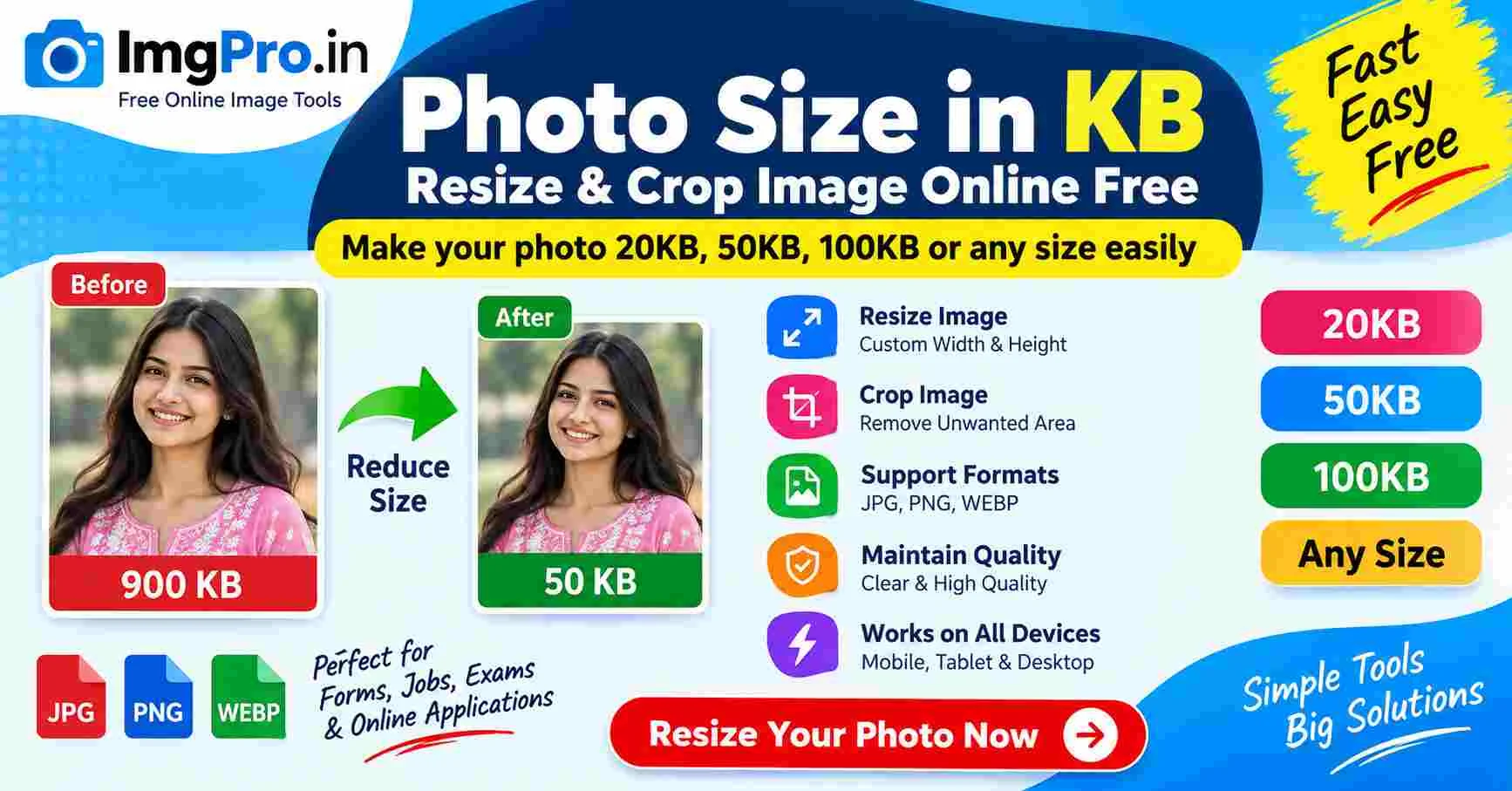
Photo Size in KB – Resize Image to 20KB, 50KB, 100KB Online Free
 Rakhal das
Photo Size in KB: How to Resize and Reduce Image Size Online
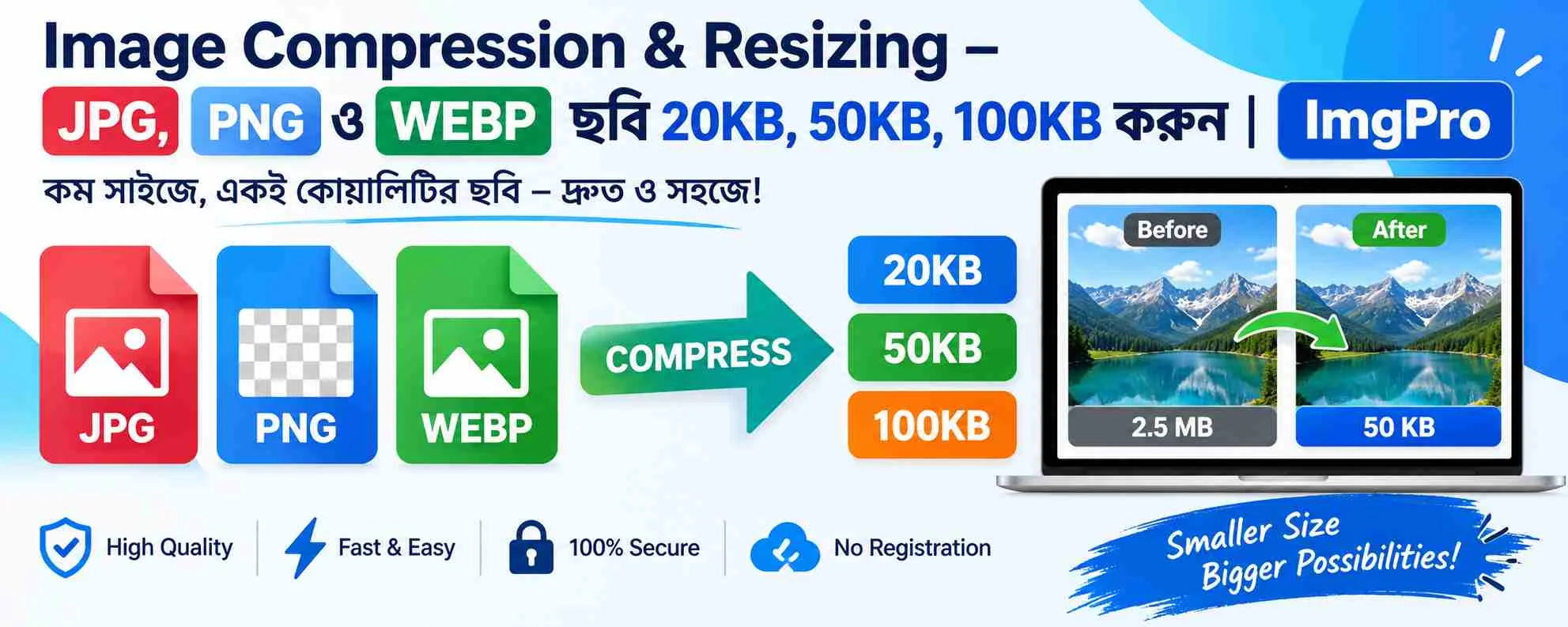
Managing photo size in KB is important when uploading images to government websites, job application portals, examination forms, websites, social media platforms, and online documents. Many websites specify a maximum image size such as 20KB, 50KB, 100KB, 200KB, or another limit.
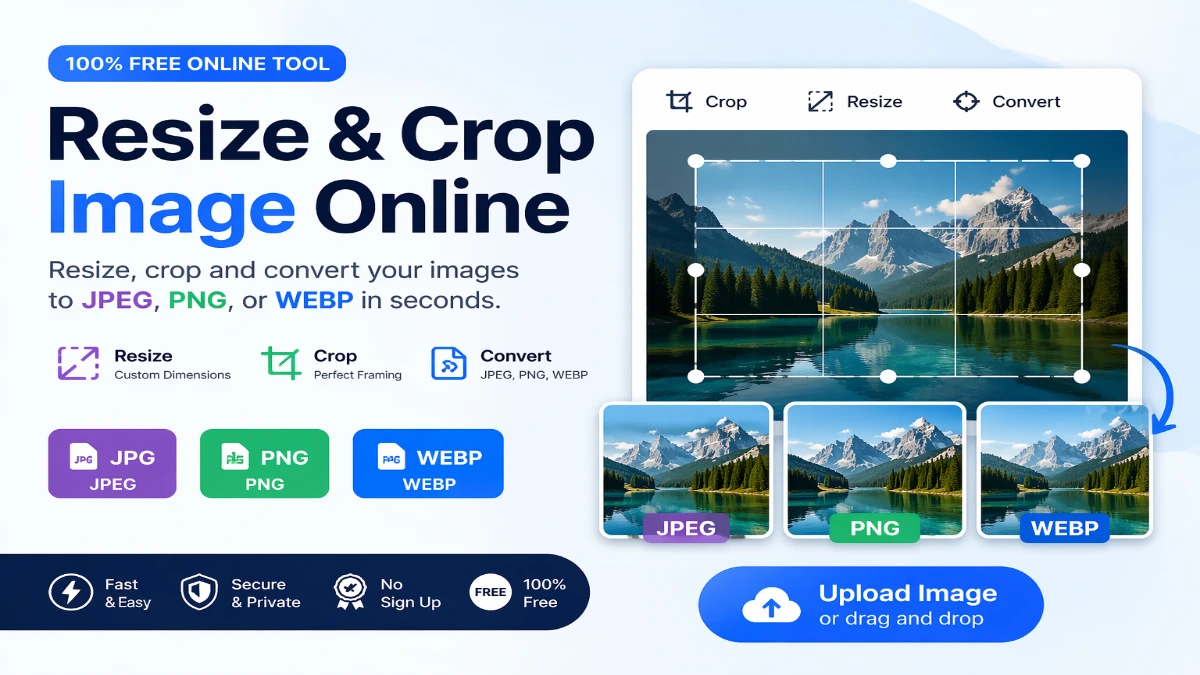
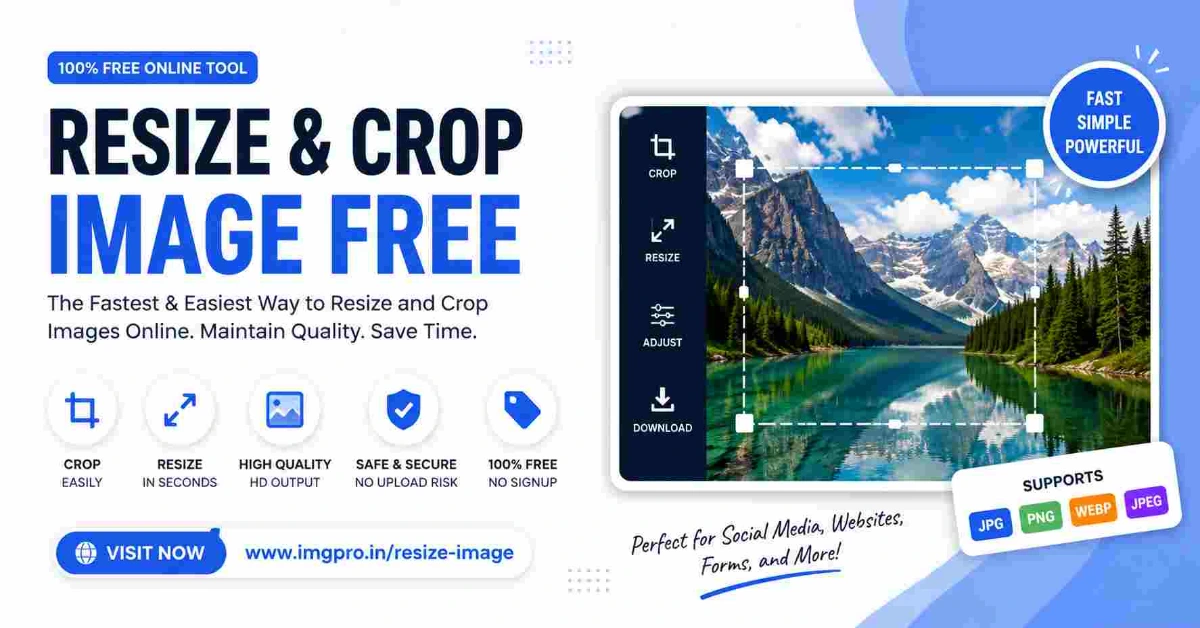
If your photo is too large, the upload may fail. Instead of installing complicated software, you can resize or crop your image online using ImgPro.
👉 Resize your photo online: ImgPro Resize & Crop Image Tool
What Does Photo Size in KB Mean?
The photo size in KB refers to the amount of digital storage required by an image file.
For example:
- A photo may be 500KB
- Another photo may be 250KB
- A compressed photo may be 100KB
- A highly compressed photo may be 50KB or 20KB
The KB size is different from the physical dimensions of an image.
For example, an image can have dimensions of 1200 × 800 pixels but have a file size of 300KB. Another image with the same dimensions could be 150KB depending on its format and compression.
Why Do You Need to Reduce Photo Size in KB?
There are several situations where reducing photo size is useful.
1. Government and Job Applications
Many online application forms specify maximum file sizes for photographs and signatures. If your image exceeds the required limit, you may not be able to submit the application.
2. Examination Forms
Competitive examination websites may require candidates to upload photographs within a specific KB range.
3. Passport and Document Applications
Official applications sometimes require specific image dimensions and file-size limits.
4. Website Uploads
Large images can increase webpage loading time. Resizing images before uploading can help reduce unnecessary file size.
5. Email and Online Sharing
Smaller images are easier to attach, upload, and share.
Photo Size in KB vs Image Dimensions
These two terms are often confused.
Image dimensions describe the width and height of the image in pixels.
For example:
800 × 600 pixels
Photo file size describes how much storage the image uses.
For example:
95KB
Therefore, changing the pixel dimensions and reducing the KB size are related but different processes.
ImgPro's resize tool allows you to adjust image width and height while maintaining the aspect ratio.
How to Resize Photo Size in KB Online
Using an online image resizing tool is simple.
Step 1: Open ImgPro
Visit:
https://imgpro.in/resize-image
Step 2: Upload Your Photo
Click the upload area and select your JPG, PNG, or WEBP image. ImgPro currently supports images up to 20MB on this tool.
Step 3: Choose Resize or Crop
You can choose Resize when you want to change the image dimensions.
Choose Crop when you want to remove unwanted areas from the photograph.
Step 4: Enter the Dimensions
Enter your required width and height in pixels.
If you want to avoid stretching or distortion, enable Maintain Aspect Ratio.
Step 5: Preview Your Image
Check the preview before downloading the final image.
Step 6: Download
Once you are satisfied with the result, click Download to save your resized image.
How to Reduce Photo Size Without Losing Too Much Quality
Reducing a photo significantly can affect its visual quality. To get a good balance between file size and appearance, follow these practices:
- Maintain the original aspect ratio.
- Avoid unnecessarily small dimensions.
- Crop unwanted areas first.
- Choose an appropriate image format.
- Avoid excessive compression.
- Preview the image before downloading.
ImgPro recommends maintaining the aspect ratio when resizing to prevent distorted images.
Which Image Format Should You Use?
JPG
JPG is widely used for photographs. It provides good image quality with relatively small file sizes.
PNG
PNG is useful when transparency or high-quality graphics are required, although PNG files can sometimes be larger.
WEBP
WEBP is designed for efficient web use and can provide a good balance between image quality and file size. ImgPro supports JPG, PNG, and WEBP.
Common Photo Size Requirements
Different websites can have different requirements. Always check the instructions of the website where you are uploading your photo.
Common limits may include:
| Requirement | Common Purpose |
|---|---|
| 20KB | Some online forms |
| 50KB | Examination/application forms |
| 100KB | Job and document uploads |
| 200KB | Online applications |
| 500KB | Websites and general uploads |
Important: These are examples only. The actual requirement should always be checked on the specific application or website.
Photo Size for Online Job Applications
Job applications frequently require candidates to upload photographs and signatures within specified file-size limits.
If your original photograph is several hundred KB or a few MB, you may need to resize or compress it before uploading.
Using an online resize tool can make this process faster because you don't need to install desktop editing software.
Photo Size for Government Forms
Government portals can sometimes have strict requirements for:
- Photograph dimensions
- Maximum file size
- File format
- Signature dimensions
- Background
- Image quality
Before uploading, carefully check the official application instructions.
If the portal says something like "Photo should be less than 100KB," make sure your final file is within that limit.
Resize vs Crop: What's the Difference?
Resize changes the width and height of the entire image.
Crop removes unwanted parts of an image.
For example, suppose you have a full-body photograph but only need a portrait. You can crop the unnecessary area first and then resize the remaining image.
ImgPro provides both resizing and cropping functionality with a live preview.
Benefits of Using ImgPro
ImgPro's Resize & Crop Image tool provides several useful features:
- Free online image resizing
- JPG support
- PNG support
- WEBP support
- Custom width and height
- Maintain aspect ratio
- Image cropping
- Live preview
- Download after editing
- Mobile-friendly interface
These features make it useful for preparing photographs for websites, documents, social media, and online applications.
Can I Resize a Photo on Mobile?
Yes. ImgPro's resize and crop tool is designed to work on mobile devices as well as desktop computers.
You can open the tool using a smartphone browser, select a photo from your device, adjust the image, and download the result.
Tips for Getting the Best Photo Size
For better results:
- Start with the highest-quality original photo.
- Crop unnecessary areas.
- Maintain the correct aspect ratio.
- Resize to the required dimensions.
- Select a suitable output format.
- Check the final image before uploading.
- Follow the exact requirements of the website.
Frequently Asked Questions
What is photo size in KB?
Photo size in KB refers to the digital file size of an image. A smaller KB value generally means a smaller file, although the final quality depends on dimensions, format, and compression.
How can I reduce photo size?
You can reduce photo size by resizing its dimensions, cropping unwanted areas, compressing the image, or choosing a more efficient image format.
Can I resize JPG images online?
Yes. ImgPro supports JPG images and lets you resize them online.
Can I resize PNG images?
Yes. PNG is supported by ImgPro's Resize & Crop Image tool.
Can I resize WEBP images?
Yes. ImgPro supports WEBP images as well.
Is ImgPro free?
Yes, the Resize & Crop Image tool is available online for free.
Can I resize an image without changing its proportions?
Yes. Enable Maintain Aspect Ratio to help preserve the original proportions while resizing.
Can I crop my photo before resizing?
Yes. ImgPro allows you to crop an image and then resize it according to your requirements.
Conclusion
Finding the correct photo size in KB is important when uploading images to online forms, job applications, government portals, websites, and other platforms. Large image files can cause upload errors or fail to meet application requirements.
With ImgPro's Resize & Crop Image tool, you can upload JPG, PNG, or WEBP images, crop unwanted areas, adjust the width and height, preview the result, and download the edited image.
If you need to prepare a photo for an online application or simply want to optimize an image for your website, you can start here:
.jpeg)
.jpeg)
.jpeg)
.jpeg)
.jpeg)
.jpeg)
.jpeg)



.jpeg)








.png)

.png)