Resize & Crop Image Free Online – Resize JPG, PNG & WEBP | ImgPro
 Rakhal das
Resize & Crop Image Free Online – Resize JPG, PNG & WEBP with ImgPro
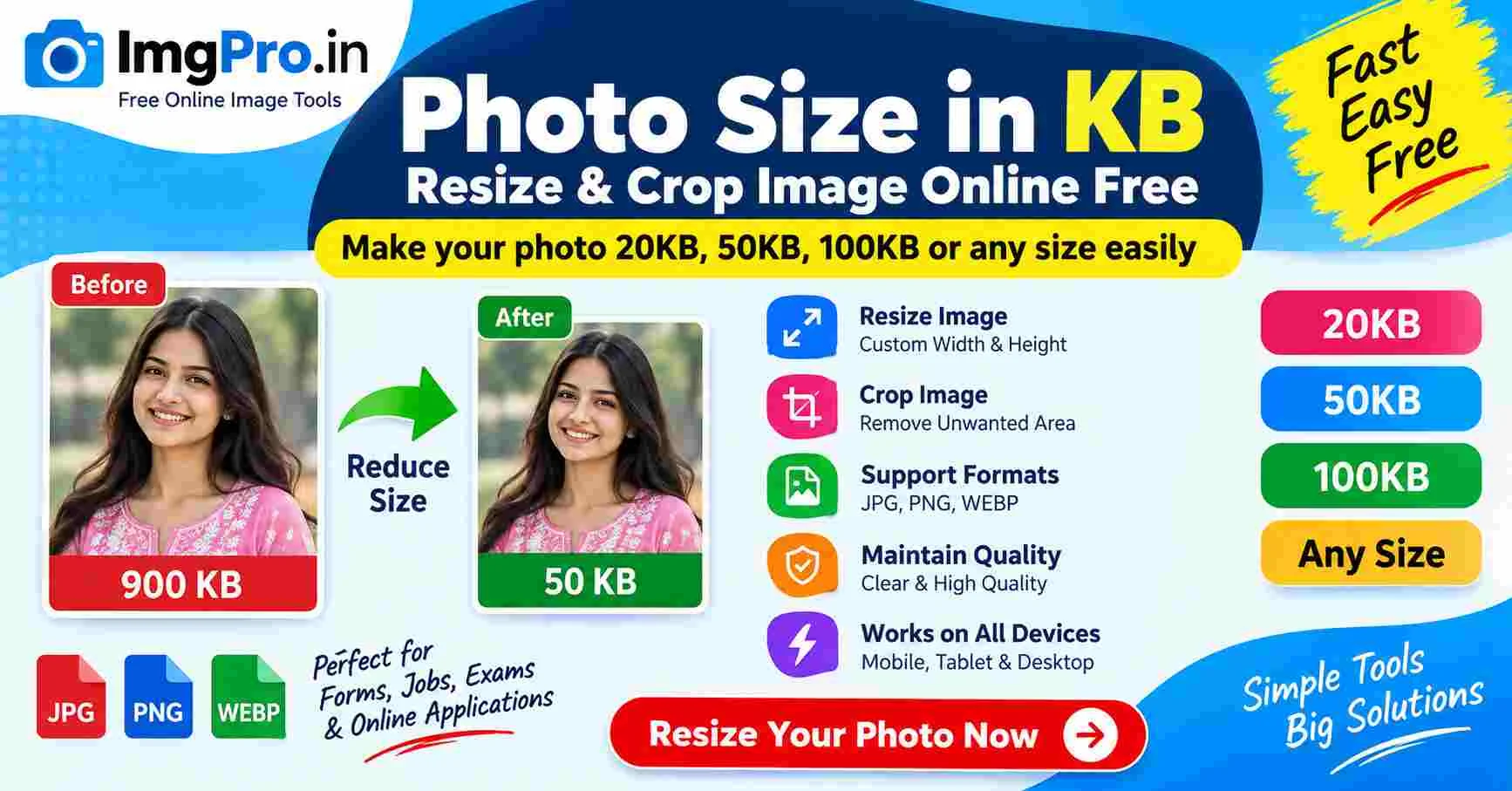
Resize & Crop Image Free is an easy way to change the dimensions and composition of your photos without installing complicated image-editing software. Whether you need to resize a photo for a website, crop an image for social media, prepare a picture for an online application, or adjust an image to exact pixel dimensions, ImgPro provides a simple browser-based solution.
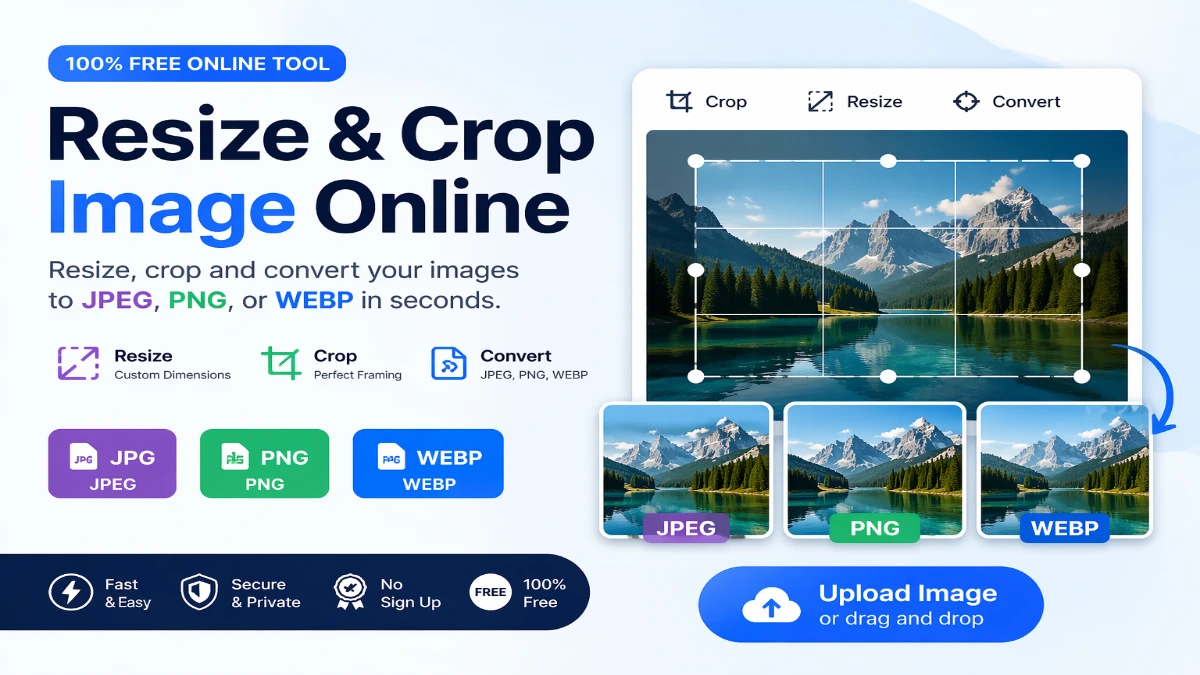
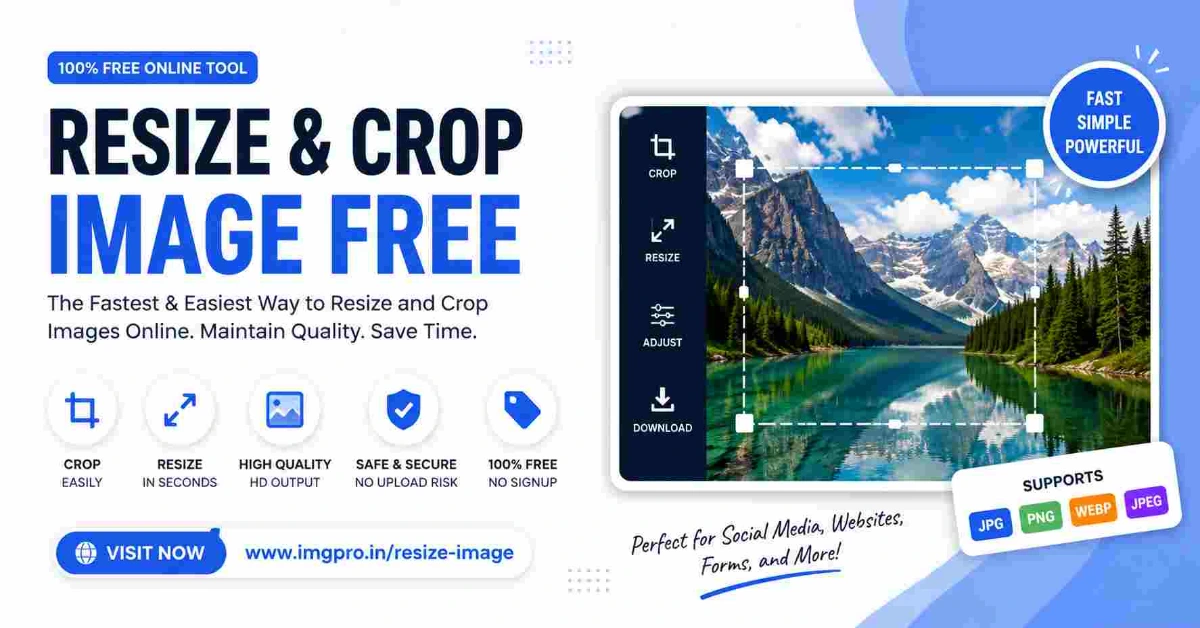
With the ImgPro Resize & Crop Image tool, you can upload JPG, PNG, or WEBP images, adjust their width and height, maintain the original aspect ratio, crop unwanted areas, preview the result, select an output format, and download the edited image. The tool currently supports images up to 20MB.
Open ImgPro Resize & Crop Image Tool
In today's digital world, images are used everywhere. Websites, blogs, online forms, job applications, social media platforms, e-commerce stores, presentations, documents, and messaging applications all have different image requirements. A photo that looks perfect on your phone may be too large for a website or may not fit the required dimensions of an online form.
This is where an online image resizer and cropper becomes useful.
Instead of downloading large editing applications, you can use a browser-based tool to make the necessary changes quickly. ImgPro combines resizing and cropping in one straightforward workflow, making it suitable for beginners as well as regular digital-content users.
What Is Resize & Crop Image?
Resizing and cropping are two different image-editing operations, although they are often used together.
Resizing an image means changing its dimensions, such as reducing a photo from 3000 × 2000 pixels to 1200 × 800 pixels.
Cropping an image means removing unwanted portions of the original image. For example, if a photograph contains too much empty space around the subject, you can crop the unnecessary area and keep only the important part.
ImgPro's tool provides both functions. You can enter custom width and height values for resizing and use the crop controls to select the area you want to retain. You can also drag over the preview to select a crop area.
Using both features together can be particularly useful. You might first crop an image to remove unnecessary background and then resize the remaining image to the exact dimensions required by a website, application, or social-media platform.
Why Should You Resize Images?
Image resizing is useful for many different reasons. An original camera photograph can contain millions of pixels and may be much larger than necessary for online use.
Reducing the dimensions can make the image more practical while also helping reduce its overall file size.
1. Faster Website Loading
Large images can contribute to slower webpage loading. If a website displays a photograph that is much larger than the size at which it is actually shown, unnecessary image data may be delivered to visitors.
Resizing images to more appropriate dimensions can help create a more efficient website and a better user experience.
For example, if an image will only appear at approximately 800 pixels wide on a webpage, there may be little benefit in uploading a 5000-pixel-wide original.
2. Meet Exact Image Requirements
Many online services specify particular image dimensions.
For example, an application may ask for:
- 200 × 230 pixels
- 300 × 400 pixels
- 600 × 600 pixels
- A particular width and height
- A specific aspect ratio
Instead of manually guessing the size, you can enter the required dimensions into an image-resizing tool.
ImgPro allows you to enter width and height in pixels and provides an option to maintain the aspect ratio.
3. Improve Social Media Images
Different social-media platforms and content formats use different image proportions.
A landscape photograph may not look good when automatically converted into a square image. Cropping allows you to decide which part of the image should remain visible before resizing it.
This is particularly useful when preparing:
- Profile pictures
- Square posts
- Cover images
- Promotional graphics
- Blog thumbnails
- Social-media photographs
4. Reduce Storage Requirements
High-resolution photographs can occupy considerable storage space.
If you have thousands of large photographs on a phone, computer, or cloud-storage account, creating appropriately resized copies can help reduce storage requirements.
However, it is always recommended to keep the original high-resolution photographs separately if they may be needed for printing or future editing.
5. Prepare Images for Email
Email services and messaging platforms may impose attachment limits.
A high-resolution photograph from a modern smartphone can be several megabytes in size. Resizing it before sending can make sharing easier.
For ordinary email communication, you often do not need the full resolution of the original camera image.
Why Crop an Image?
Cropping is more than simply making a picture smaller.
It allows you to control the composition of an image by removing unnecessary areas.
Imagine taking a photograph of a person standing in front of a large background. If the person occupies only a small portion of the photograph, cropping can remove unnecessary space and make the subject more prominent.
Common reasons to crop images include:
- Removing unwanted background
- Focusing attention on the main subject
- Creating a square photograph
- Preparing a profile picture
- Creating thumbnails
- Removing distracting objects near the edges
- Changing the composition
- Preparing images for online forms
- Creating consistent image dimensions
ImgPro provides crop controls including X and Y offsets and crop width and height, while also allowing users to select the crop area by dragging on the image preview.
Resize vs Crop: What Is the Difference?
Many users confuse resizing and cropping because both can make an image appear smaller.
However, they work differently.
Resizing
Resizing changes the dimensions of the entire image.
For example:
Original: 2000 × 1500 pixels
Resized: 1000 × 750 pixels
The complete image remains visible, but it contains fewer pixels.
Cropping
Cropping removes part of the image.
For example:
Original: 2000 × 1500 pixels
Cropped: A selected portion of the original photograph
The remaining section can then be resized if necessary.
Using Both Together
In many situations, the best workflow is:
Crop → Resize → Preview → Download
This allows you to first remove unnecessary content and then create the final dimensions.
How to Resize & Crop Image Online with ImgPro
Using ImgPro is straightforward and does not require professional image-editing knowledge.
According to the tool's workflow, you can upload your image, crop it, resize it, preview the result, select an output format, and download the final image.
Step 1: Open the ImgPro Tool
Visit the ImgPro Resize & Crop Image page:
https://imgpro.in/resize-image
The tool provides an upload area where you can drop your image or browse for a file on your device.
Step 2: Upload Your Image
Select the image you want to edit.
ImgPro supports:
- JPG
- PNG
- WEBP
The tool supports input files up to 20MB.
You can use photographs, graphics, screenshots, website images, and other supported image files.
Step 3: Choose Resize or Crop
After selecting an image, you can choose between the Resize and Crop functions.
If the entire image needs to become smaller or larger, use Resize.
If you want to remove part of the image, use Crop.
If you need both changes, you can combine the two operations.
Step 4: Enter the Image Dimensions
For resizing, enter your desired width and height in pixels.
For example:
Width: 800 px
Height: 600 px
The tool also includes a Maintain aspect ratio option.
Maintaining the aspect ratio is important when you want to avoid stretching or squeezing the image.
What Is Aspect Ratio?
Aspect ratio describes the relationship between the width and height of an image.
For example:
- 1000 × 1000 = 1:1
- 1200 × 800 = 3:2
- 1920 × 1080 = 16:9
- 800 × 600 = 4:3
If you change the width and height independently without considering the original ratio, the image can become distorted.
A person's face may look unusually wide, or objects may appear stretched.
That's why the Maintain aspect ratio option can be useful when resizing photographs.
Step 5: Crop the Image
If you want to remove unwanted portions, switch to the Crop option.
ImgPro allows you to select the crop area by dragging directly over the preview image. You can also work with crop width, crop height, X offset, and Y offset controls.
Try to keep the most important subject inside the selected area.
For example, when cropping a portrait photograph, make sure the person's face and other important details are not accidentally cut off.
Step 6: Check the Preview
Before downloading, examine the preview carefully.
Look for:
- Correct dimensions
- Proper composition
- No unwanted cropping
- No distortion
- Good image quality
- Correct orientation
A quick preview can prevent mistakes, particularly when an image is being prepared for an important application.
Step 7: Select Output Format
After editing the image, you can select the desired output format.
ImgPro supports JPG, PNG, and WEBP formats for its image tools.
The best format depends on what you need.
JPG
JPG is commonly used for photographs.
It provides a good balance between image quality and file size and is widely supported.
PNG
PNG is useful for graphics and images where transparency or lossless characteristics are important.
It is often suitable for logos, illustrations, screenshots, and graphics.
WEBP
WEBP is designed for efficient web delivery and can provide a useful combination of quality and file size.
It can be a good choice for websites where reducing image weight is important.
Step 8: Download the Resized Image
Once you are satisfied with the result, use the Download option to save the edited image to your device. The ImgPro workflow provides a download step after the preview and output-format selection.
You can then use the image for your website, application, social-media post, email, document, or other purpose.
Best Practices for Image Resizing
Getting the dimensions right is important, but good resizing involves more than entering random numbers.
Here are some useful practices.
1. Keep the Original Image
Always keep a copy of the original photograph before making major changes.
The original can be useful later if you need a different size or higher-quality version.
2. Maintain the Aspect Ratio
When resizing a normal photograph, keep the aspect ratio locked whenever possible.
This prevents unwanted stretching and distortion.
3. Resize to the Actual Requirement
Do not automatically resize every image to an extremely small dimension.
Instead, check where the image will be used.
A website banner, profile photo, document photograph, and thumbnail may all require different dimensions.
4. Crop Before Final Resizing
If the composition needs adjustment, crop the image first and then create the final dimensions.
This can give you greater control over the final result.
5. Avoid Unnecessary Upscaling
Increasing a small image to a very large size does not magically recreate missing details.
If an original photograph is very small, excessive enlargement can make it appear blurry or pixelated.
For the best results, start with a reasonably high-resolution source image whenever possible.
Common Uses of a Free Image Resizer and Cropper
A resize and crop tool can be useful for many everyday tasks.
Government and Online Applications
Many online application systems require photographs or documents to follow specific dimensions and file-size requirements.
Before uploading a photograph, you may need to crop it and resize it to match the instructions.
Always follow the exact requirements of the specific application portal.
Passport and ID Photos
Passport-style and ID photographs often require a particular composition and aspect ratio.
Cropping can help position the subject correctly, while resizing can help create the requested dimensions.
If an official application specifies exact dimensions, use those requirements rather than relying on a generic size.
Website Images
Website owners frequently need images with consistent dimensions.
A blog may use:
- Featured images
- Article thumbnails
- Author photographs
- Product images
- Banner images
Resizing images before uploading them can help avoid unnecessarily large files.
Social Media
Social-media content frequently uses different aspect ratios.
Instead of allowing a platform to automatically crop your photograph, you can crop it yourself and choose the important part of the image.
This gives you greater control over how the final image appears.
E-Commerce Product Photos
Online stores often need consistent product-image dimensions.
Cropping and resizing product photographs can create a more uniform appearance across product listings.
Email Attachments
Large photographs can be inconvenient to send.
Creating a smaller version can make sharing easier while keeping the original file untouched.
Resize JPG Images Online
JPG is one of the most commonly used image formats.
If you have a JPG photograph that is too large for a website or application, you can use ImgPro to resize it to appropriate dimensions.
For example, you might convert a large camera photograph into:
Original: 4000 × 3000 px
New: 1200 × 900 px
The exact dimensions should depend on the destination requirements.
Resize PNG Images Online
PNG is popular for graphics, logos, illustrations, screenshots, and images where transparency is important.
If a PNG is unnecessarily large, resizing its dimensions can make it more practical for online use.
However, you should select the output format carefully if transparency is important to your design.
Resize WEBP Images Online
WEBP is widely useful for web content because it is designed for efficient image delivery.
If you already have a WEBP image but need different dimensions, ImgPro supports WEBP input in its Resize & Crop Image tool.
You can adjust the dimensions and choose an appropriate output format for your intended use.
Can Resizing Reduce Image File Size?
Yes, reducing the pixel dimensions of an image can often reduce its file size, although the final file size depends on several factors.
These include:
- Image dimensions
- Image format
- Image content
- Compression settings
- Metadata
- Output quality
For example, a 4000 × 3000 photograph generally contains much more pixel information than a 1200 × 900 version.
However, resizing and compression are not exactly the same thing.
Resizing changes dimensions.
Compression reduces the amount of data used to store the image.
For strict requirements such as 20KB, 50KB, or 100KB, a dedicated image-compression tool may be more appropriate.
Resize Image Without Distortion
The most important rule for avoiding distortion is to maintain the original aspect ratio unless you intentionally want to change the composition.
Suppose your original image is:
2000 × 1000 pixels
Its aspect ratio is 2:1.
A proportional resize could be:
1600 × 800
or:
1000 × 500
But resizing it to:
1000 × 1000
without cropping would change the proportions and may make the photograph look stretched.
If you need a square image, cropping is usually a better solution.
Crop Image Without Losing the Important Subject
When cropping, pay attention to the position of the main subject.
For portraits:
- Keep the face clearly visible.
- Avoid cutting through important facial features.
- Leave appropriate space around the subject.
For products:
- Keep the entire product visible if required.
- Remove unnecessary background.
- Maintain consistent framing.
For landscapes:
- Decide which areas contribute to the composition.
- Remove distracting edges.
- Keep important objects inside the crop.
The live preview makes it easier to evaluate the crop before downloading.
Is ImgPro Resize & Crop Image Free?
Yes. The ImgPro page describes the Resize & Crop Image tool as free to use online.
The browser-based workflow means you can access the tool without needing a traditional desktop image editor.
You can visit:
Can I Use the Tool on Mobile?
Yes. ImgPro states that the Resize & Crop Image tool is mobile-friendly and can be used on smartphones and tablets.
This is particularly convenient for people who take photographs with their phones and need to prepare them for an online form, website, social media, or email without transferring the files to a computer.
Is My Image Safe?
ImgPro states on its Resize & Crop Image page that images are processed securely and are not stored permanently.
Nevertheless, when working with highly sensitive documents, users should always consider the privacy requirements of the specific service they are using and avoid uploading confidential material to services they do not trust.
Frequently Asked Questions
1. What is an image resizer?
An image resizer is a tool that changes the width and height of an image. It can be used to make photographs smaller, create exact pixel dimensions, or prepare images for websites and online applications.
2. What is an image cropper?
An image cropper removes unwanted portions of a photograph. It lets you select the area of the image that you want to keep.
3. Can I resize and crop the same image?
Yes. ImgPro is designed to provide both resizing and cropping functions in the same tool.
4. Which image formats are supported?
The ImgPro Resize & Crop Image tool supports JPG, PNG, and WEBP images and accepts files up to 20MB.
5. Can I set an exact image width and height?
Yes. You can enter the desired width and height in pixels.
6. What does Maintain Aspect Ratio mean?
Maintain Aspect Ratio keeps the proportional relationship between an image's width and height when resizing. This helps prevent distortion.
7. Can I crop an image by dragging?
Yes. ImgPro provides a preview where you can drag to select the crop area.
8. Can I resize an image for a website?
Yes. Resizing images before placing them on a website can help avoid unnecessarily large dimensions and may contribute to better page performance.
9. Can I use the tool for social-media images?
Yes. You can crop and resize images according to the dimensions or proportions required by your intended platform.
10. Can I resize images on my phone?
Yes. The tool is designed to be mobile-friendly.
11. Does resizing always reduce file size?
Not necessarily. Reducing dimensions often helps reduce file size, but the final size depends on the image format and other encoding factors.
12. Does cropping reduce image size?
Cropping removes image content and can reduce the amount of image data, although the exact final file size depends on how the resulting image is encoded.
13. Should I crop before resizing?
In many cases, yes. Cropping first allows you to remove unnecessary areas and then resize the remaining image to the desired dimensions.
14. Which format is best for photographs?
JPG is commonly suitable for photographs. WEBP can also be useful when efficient web delivery is a priority.
15. Which format is best for transparent graphics?
PNG is commonly used when transparency is important.
Tips for Getting the Best Results
To get the best results from an online image resizer and cropper, follow these simple recommendations:
- Keep your original file.
- Check the required dimensions before editing.
- Maintain aspect ratio for normal resizing.
- Crop unwanted areas before final resizing.
- Use the preview to check the composition.
- Avoid making small images unnecessarily large.
- Choose the output format according to your purpose.
- Use JPG for many photographic applications.
- Use PNG when transparency is important.
- Consider WEBP for web-focused images.
- Check the final file before uploading it to an application.
- Do not confuse image dimensions with file size in KB or MB.
Why Use ImgPro for Resize & Crop Image?
ImgPro focuses on making common image-editing tasks simple.
The Resize & Crop Image tool includes:
- Free online image resizing
- Image cropping
- JPG support
- PNG support
- WEBP support
- Up to 20MB input
- Custom width
- Custom height
- Maintain aspect ratio
- X and Y crop offsets
- Crop width and height controls
- Drag-based crop selection
- Live preview
- Output format selection
- Download functionality
- Mobile-friendly interface
This combination makes the tool useful for everyday image preparation without requiring advanced photo-editing software.
Resize & Crop Images Online Without Complicated Software
Professional image-editing applications can provide hundreds of features, but most users do not need all of them for a simple resizing or cropping task.
If your only goal is to change image dimensions or remove unwanted areas, a dedicated online tool can be much faster.
With ImgPro, you can open the tool, select your image, make the required adjustments, preview the result, and download the edited file.
This makes the workflow suitable for students, job applicants, bloggers, website owners, designers, social-media users, photographers, and everyday users.
Final Conclusion
Resize & Crop Image Free is a useful solution for anyone who needs to quickly adjust the dimensions or composition of a digital image.
Resizing allows you to change an image's width and height, while cropping lets you remove unwanted portions and focus on the most important part of the photograph. When used together, these functions make it much easier to prepare images for websites, social media, online applications, email, documents, and other digital platforms.
ImgPro's online Resize & Crop Image tool supports JPG, PNG, and WEBP, allows custom pixel dimensions, provides aspect-ratio control, offers crop selection through the preview, and lets you select an output format before downloading the result. The tool supports files up to 20MB.
The most effective workflow is simple:
Upload → Crop → Resize → Preview → Choose Format → Download
If you need to prepare an image quickly without installing image-editing software, try the free ImgPro tool below.
.jpeg)
.jpeg)
.jpeg)
.jpeg)
.jpeg)
.jpeg)
.jpeg)



.jpeg)









.png)


.png)